
# Exploring Petrons
# Pinning Petron
A user can pin any Petron which they can see in the Petron library. Pinning will add the pinned Petron to the top of the library as well as add the Petron to the application menu on the left for quick access. User can unpin from the application menu or directly from the Petron Library.
# Petron Toolbar
Once you have selected a Petron, you will see the Petron Toolbar on the top of the Petro.ai Application. This toolbar is an always-present toolbar that is used to drive functionality and analysis for the Petron. The toolbar has multiple tabs along the top for supporting a variety of use cases and workflows including Filtering, Overview, Map, Forecast, and Approvals
# Petron Filter
The Petron Filter is a Petron-scoped filter that follows the user throughout the Petron. To give the user a quick indication of the filter’s status, when the Petron Filter is set or otherwise active, the filter icon will appear filled. Petron Filters can be saved and shared from this drawer.
# Petron Overview
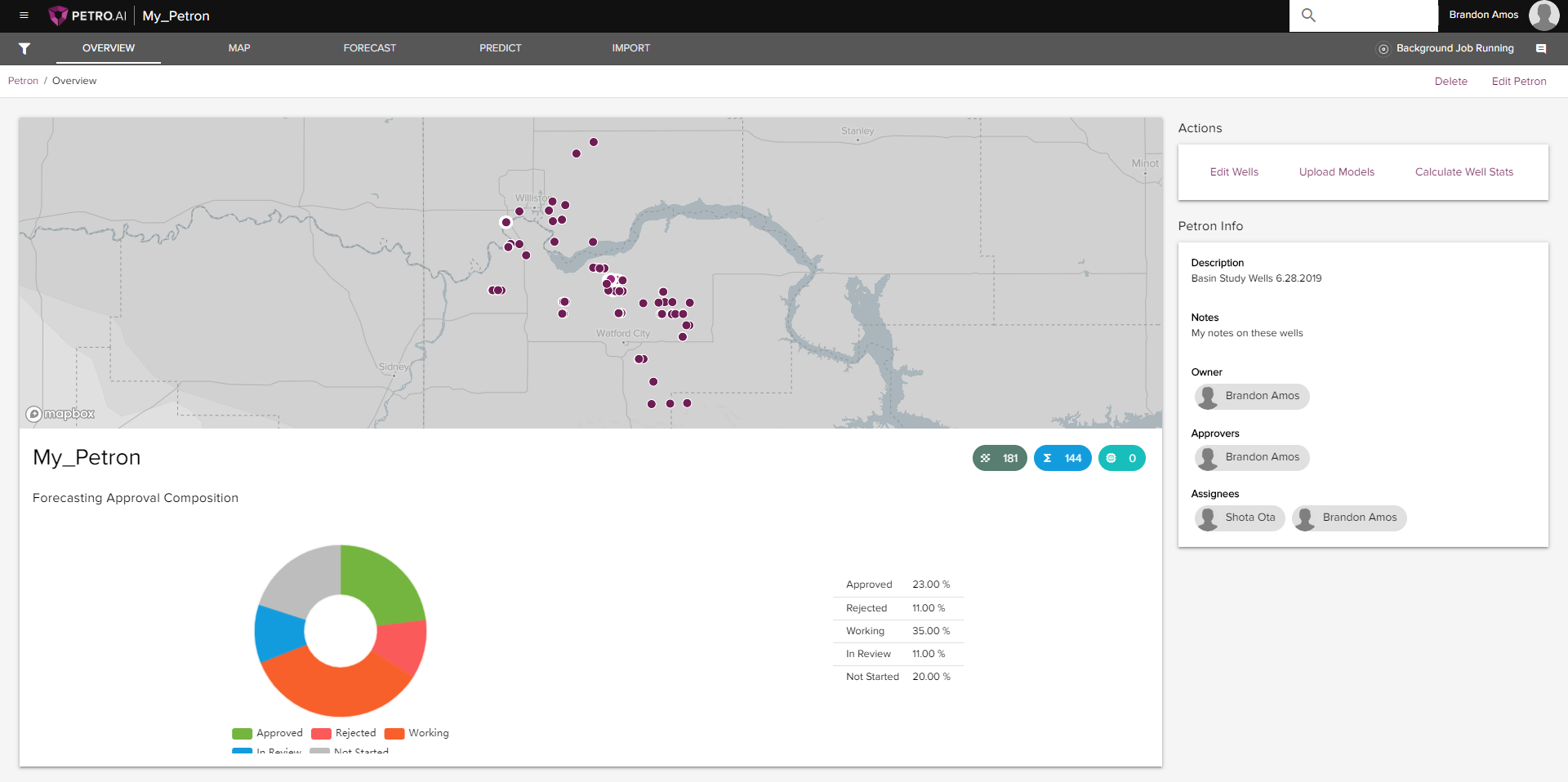
The Overview Page is the users first look at a Petron. This page provides high level summary statistics of a Petrons metadeta, current forecasting approvals composition, map of wells in the Petron, and various other Petron related actions.
# Actions
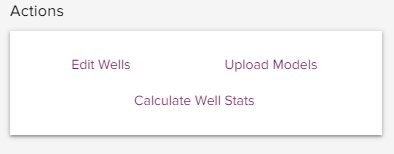
Petron Actions allow the Petron Owner to add or remove wells, upload models, and calculate well statistics for the Petron.
# Edit Wells
Copy and paste list of well ids into the gray box and click Add or Remove
Well list well ids must match the "Well Id" in the Petro.ai system
Well list should be comma separated

# Upload Models
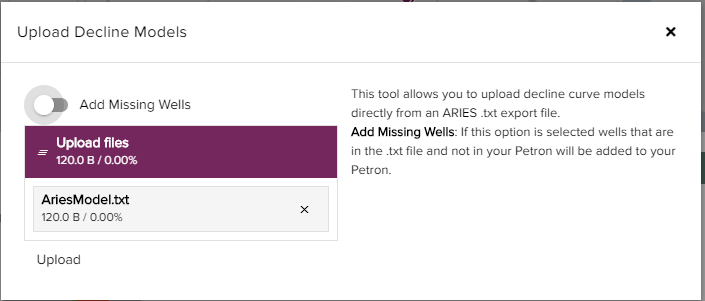
- Upload Decline Models allows the Petron Owner to upload decline curve models directly from an ARIES.txt export file.
- Click the plus icon and navigate to a single ARIES.txt file.
- Add Missing Wells: if this option is toggled on, the selected wells that are in the .txt file and not in your Petron will be added to the Petron.
# Petron Info
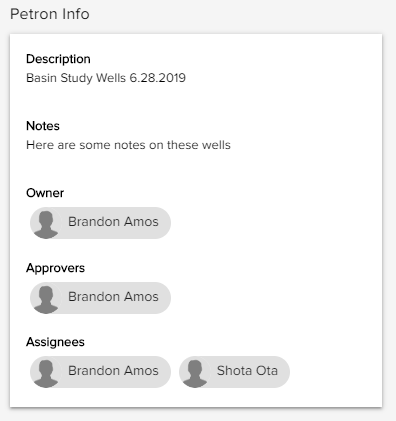
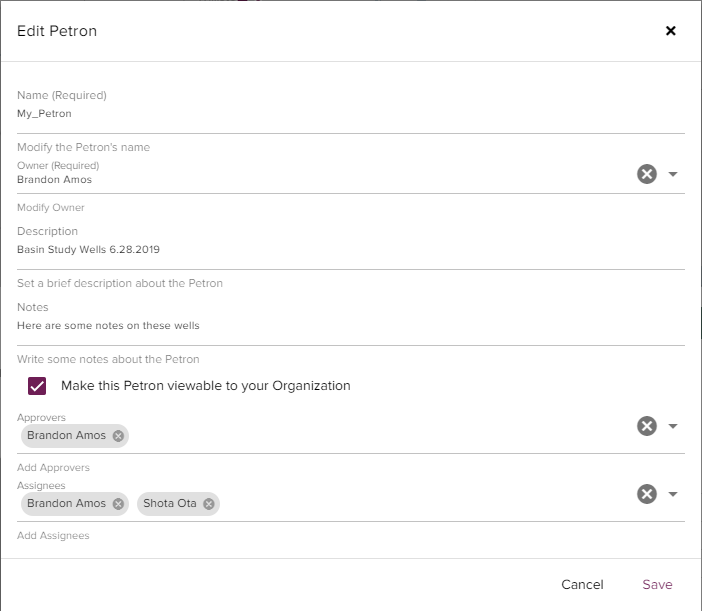
Petron Info provides an overview of the Petron and its assigned roles. The roles can only be edited by the Petron Owner.
| Petron Info | Description |
|---|---|
| Description | Any description written about this Petron. |
| Notes | Any notes written about this Petron. |
| Owner | The Petron owner. This user has the full administrative rights for this Petron. |
| Approvers | List of users with forecasting approval privileges. These users can approve or reject well forecasts but can not edit well forecasts. |
| Assignees | List of users with forecasting privileges. These users can create well forecasts but can not approve those forecasts. |
# Forecasting Approval Composition
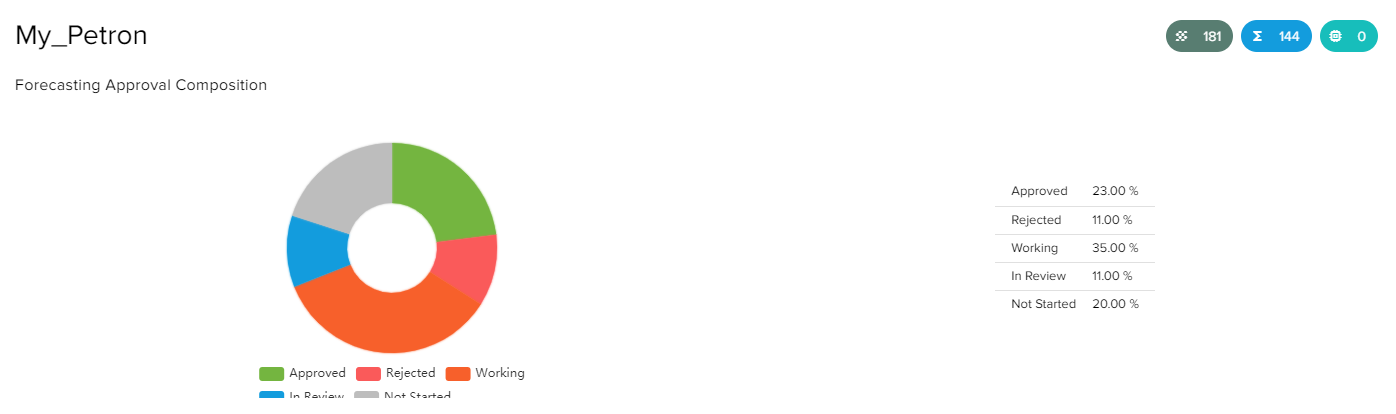
Forecast Approval Composition card provides workflow states for each well decline in the Petron. The information is displayed in a donut chart and a table with their associated percentages.
| Forecasting Approval | Description |
|---|---|
| Approved | A submitted well forecast that has completed the approval process. |
| Rejected | A submitted well forecast that has been rejected by the approver. The assignees can edit this forecast and resubmit. |
| Working | A well that has had a forecast run on it but not been submitted. |
| In Review | A submitted well forecast that has yet to be approved or rejected by the approver. |
| Not Started | A well that has not had a forecast run on it. |
Additional Petron information can be found in the upper right side of this card. The number of wells in the Petron, the current number of curve models, and the number of Machine Learning Models are displayed as three icons.
# Additional Functionality
The upper ribbon of the Petro.ai Overview page gives options to "Delete" or "Edit Petron" in the upper right side of the page.

# Edit Petron
| Overview Page ribbon | Description |
|---|---|
| Delete | The Petron Owner has the administrative rights to delete this Petron. This action will remove all wells and currently working forecasts. Already saved and approved forecasts will still be accessible through the Petro.ai system |
| Edit Petron | The Petron Owner has the administartive rights to name a Petron, modify the owner, write a description, write some notes, make the Petron view able to the organization, and add or remove approvers and assignees. |
# Petron Map
The Map tab is where users go to learn about the wells in the Petron.
# Petron Forecast
Production forecasting occurs in the Forecast tab. Users can forecast many wells using the Petro.ai Autocasting Engine and then fine tune the resulting decline models with the single well segment editor.
# Petro Files
Users can take advantage of the drag-n-drop feature of Petro.ai to load individual files or to load imported queries and tie them directly to a petron.